Introduction
This guide illustrates how to use SNAPbuilder to change the feature and line buttons on your Crexendo desk phone.
For a video demonstration, go to: https://www.youtube.com/watch?v=n0OLkZVWPh4&list=PLXADOltuavV9jC_HL7NiOiBoK A9VZIBxm&index=2
NOTE: SNAPbuilder is only used for feature buttons (not Soft Keys). Feature/line buttons are located on the left and right side of your desk phone display screen.
Accessing SNAPbuilder in the VIP Portal
To access SNAPbuilder, login to the VIP Portal. SNAPbuilder works the same for all users and only works on desk phones. It is not for use for the VIP Mobile App or Web Phone.
SNAPbuilder is in different places in the VIP portal depending on the permissions that you have in the portal.
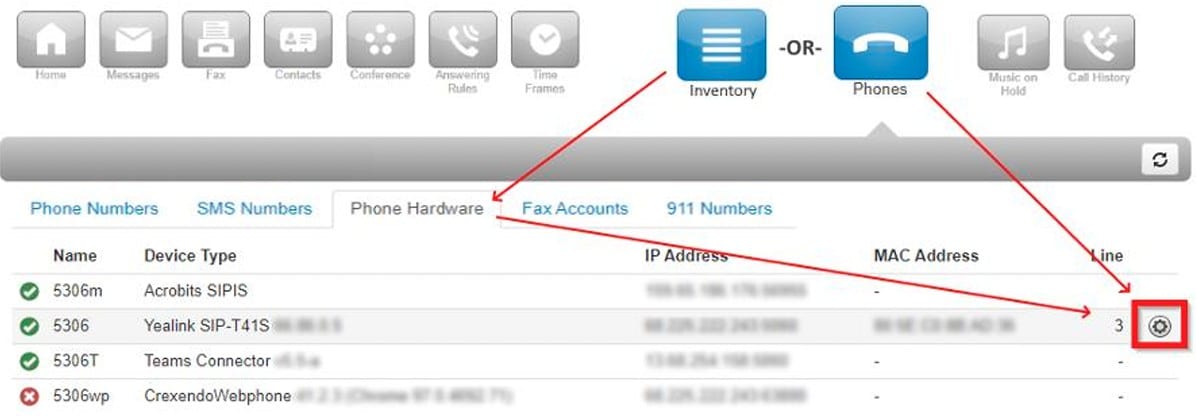
If you have user permissions in the portal, SNAPbuilder is in the “Phones” center. Then find the desk phone entry you are looking for. Click the “gear” icon on the right side of the phone entry to launch the SNAPbuilder by selecting “Yes” to configure button configuration.
Inside SNAPbuilder
After launching SNAPbuilder, you will see a screen like what is shown below with a diagram of your desk phone on the left and a list of buttons on the right (blue and gray numbered circles).
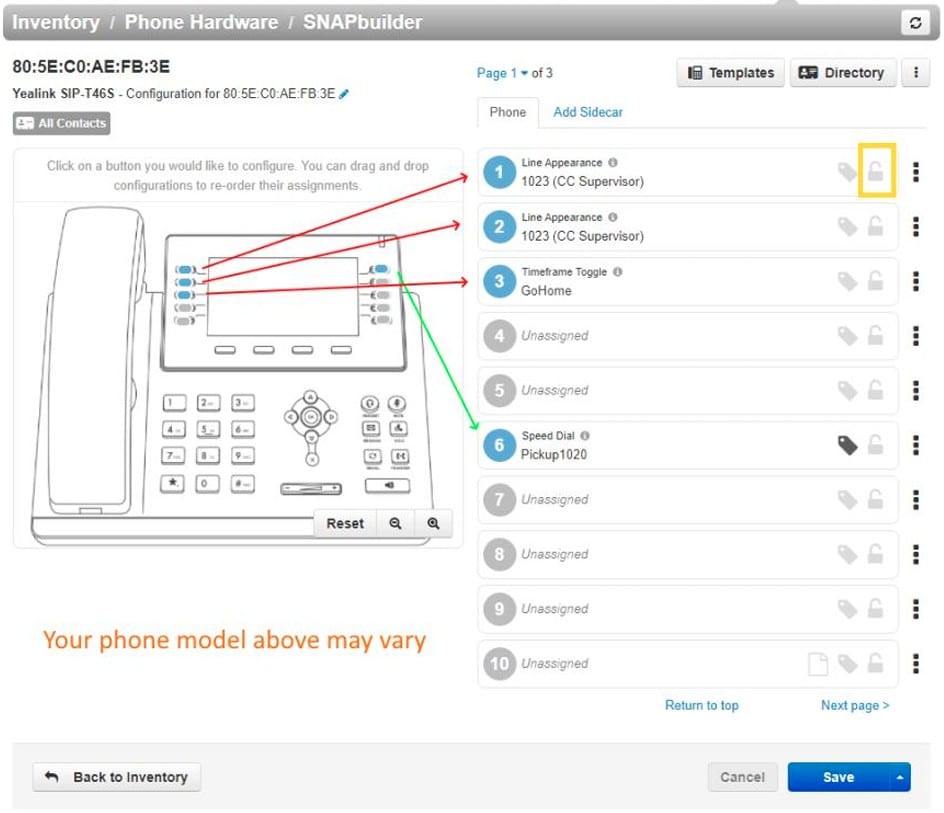
Blue buttons are already assigned a function while gray buttons are not. If the padlock icon (highlighted in gold) is unlocked, then you can edit that button.
Phone Pages
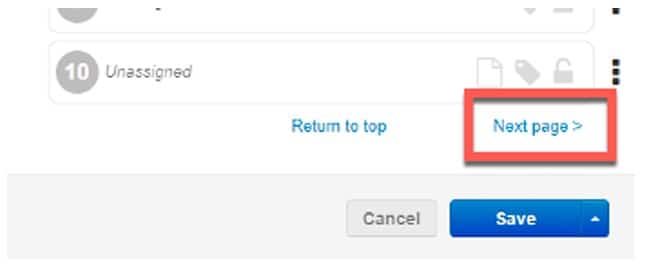
In the example above, you may also notice that that model has 10 buttons, but, it has 10 buttons on page one. Most models of Crexendo phones have two, three, or even four pages of buttons. In SNAPbuilder, to view the other pages, click the “Next Page” link (bottom right, above the Save button). When viewing the other pages, you will have a new set of unassigned buttons.
Editing Your Phone
You can either add a new button or change an existing button on any page.
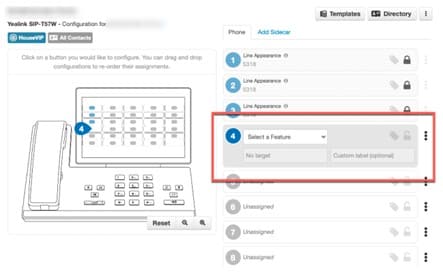
Adding a Button: On the right, navigate to the desired page and choose a button entry that is marked “Unassigned”. Click on the entry and it will expand and allow you to modify it as shown below.
Editing a Button: Navigate to the desired page and click on any unlocked button entry. It will expand and allow you to modify it as shown below.
Saving the Changes to Your Phone
Once you have selected your desired phone configuration, you must send that configuration to your phone. When this happens, your phone will reboot if it is idle. If it is not idle, it will wait until you end the call and then update the phone.
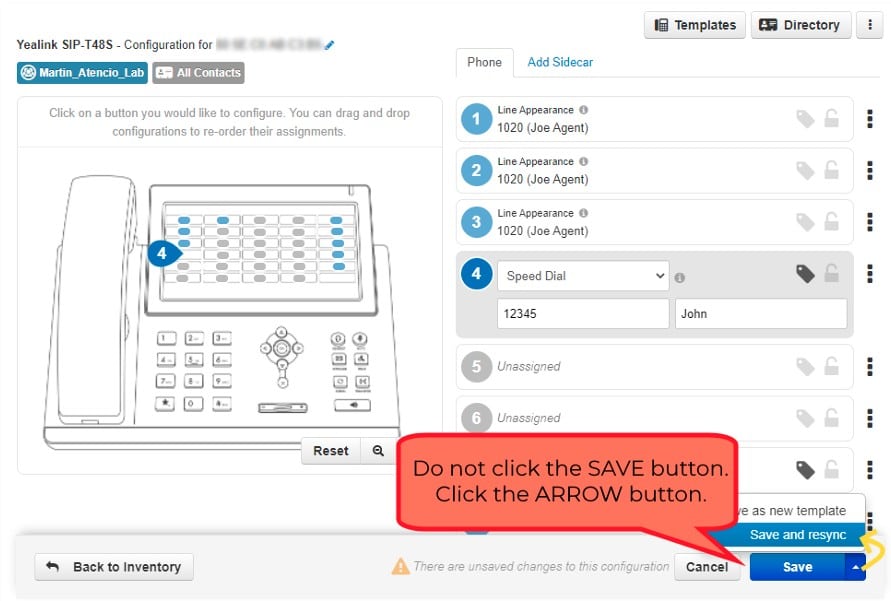
To send the configuration to your phone, click the arrow button next to the “Save” button and click the “Save and Resync” option as shown below.
Available Features
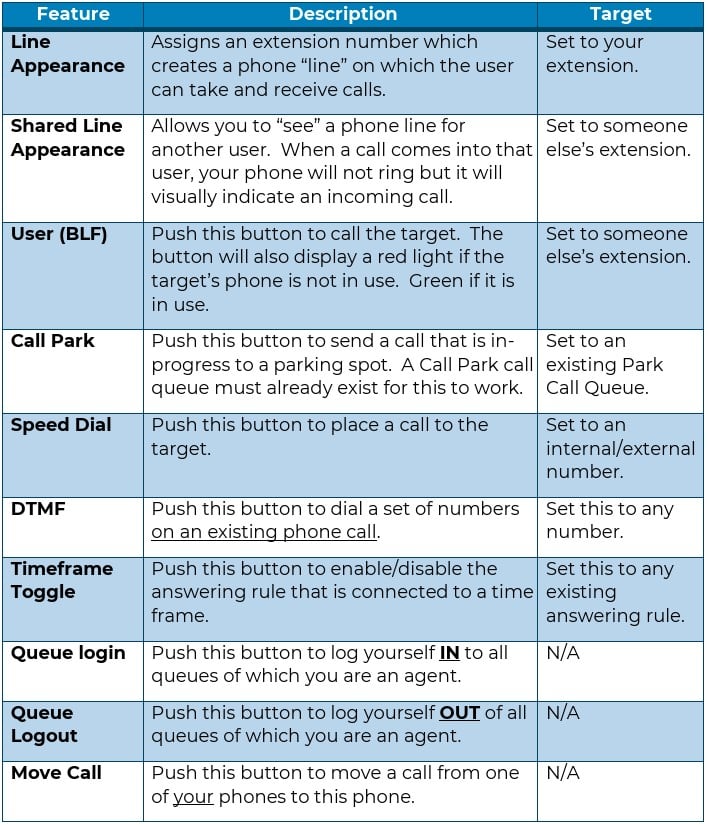
The VIP Portal offers the following list of features. You can have many buttons with the same feature.