Receiving Inbound Faxes
Once the fax feature is enabled by Crexendo, incoming faxes will be delivered to the email address(es) of your choosing. You can have faxes delivered to one or more recipients (email addresses). When a fax is received into your fax number, the fax is delivered to all email addresses attached to that fax number. Please contact phones@truman.edu to make changes to your fax services. Senders have a couple of ways to send faxes
• Physical Fax Machine: The sender can use their fax machine and send a fax to our organization’s fax number as normal.
• Email: A sender can send a fax as if they are sending an email. The body of the email is considered the cover page and the attachment is the actual faxed document. The sender must send to this email address:
- 1 + the ten-digit fax number@fax.crexendovip.com
Sending Outbound Faxes
VIP Faxing allows you to send and receive faxes via your email, the VIP Portal, or through a physical fax machine.
Outbound Faxes – Email
ITS configures the fax system so that only authorized users can send faxes on behalf of our organization. After a fax is sent by an authorized user, that user will receive periodic fax-status emails such as when the fax is pending and when it is sent successfully.
To send an outbound fax via email:
1) Launch your email client and open a new email, and enter the following:
a. TO: 1 + outgoing ten-digit fax number@fax.crexendovip.com
b. SUBJECT: Fax Subject
c. BODY: Cover Page Content
2) Attach the documents you wish to fax (3 attachment maximum)
3) Click the “Send” button.
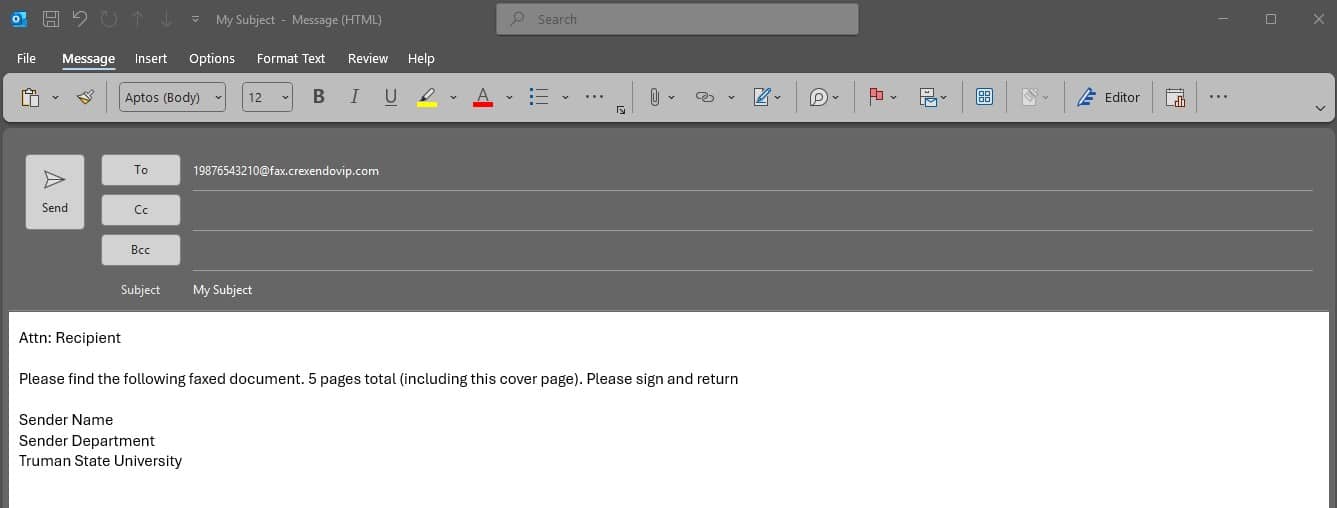
After the email has been sent, you will receive an email with a delivery confirmation.
To Send an Outbound Fax from the Portal:
1. Login to your VIP Portal.
2. Select the “Fax” Button at the top of the screen. This will open your Fax Inbox. If you have received any new faxes, they will appear here. Click the drop-down arrow to see any sent faxes.
3. To send an outbound fax, select “Send Fax” on the right side of the screen. This will open a new dialogue box.
4. Click “Browse” to attach the fax you would like to send. The Caller ID displays your fax number.
5. Enter the destination fax phone number.
6. To add a cover sheet (optional) select “Add Cover Sheet” and fill in the blanks provided.
7. Click “Send”
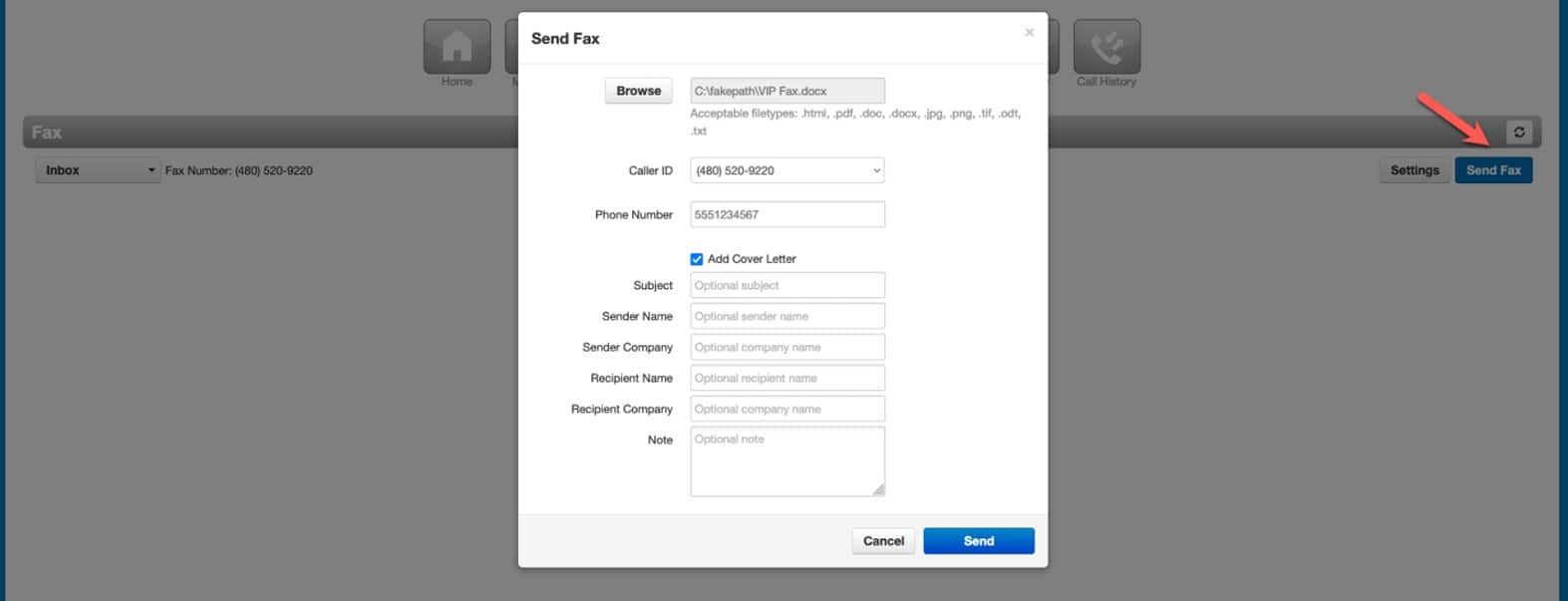
8. To check the status of the fax, either select the drop-down for your “Sent” faxes or check your email inbox for the confirmation email.